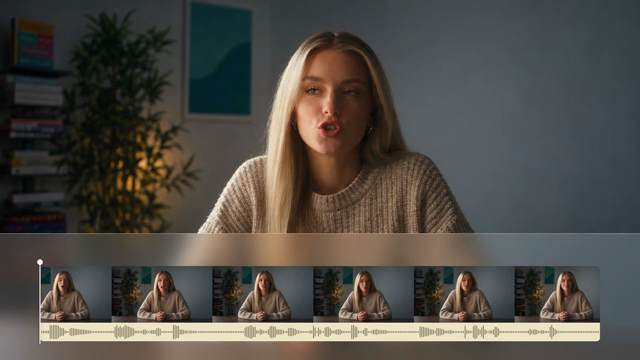
Speech Cleanup is the form entry for ChatCut’s talking-head editing workflow. It starts by cleaning up retakes, false starts, filler words, and long pauses in your spoken recordings while keeping the speaker’s meaning and natural delivery intact. After the speech timing is settled, you can stop with the clean cut or continue step by step through B-roll, Motion Graphics, background music, captions, and audio cleanup. Speech Cleanup is available in ChatCut Web and ChatCut Desktop, and you can also ask a connected external agent to load and run it on your project.
When should I use Speech Cleanup?
Use it when you have one or more speech-led recordings—such as a single-speaker talking-head video, interview, video podcast, lecture, tutorial, or course—and want the Agent to clean up the spoken delivery on an editable timeline first.
Do not use it in these cases:
- You want to cut one long video into standalone social shorts. Speech Cleanup edits your speech into a coherent timeline rather than pulling separate highlight shorts. Use Turn a Long Video into Shorts instead.
- You have multiple camera angles and separate audio recorders from the same session that need synchronization and angle switching. Use AI Multicam Editor first to synchronize the session and cut between speakers.
- Your speech edit is already final and you only want to apply a caption preset. Use Add Captions or the editor’s Captions menu instead.
- You are editing a software screen recording where on-screen clicks and visible results drive the cut. Speech Cleanup can clean spoken narration, but it does not manage screen-demo action sequences, pointer effects, or zooms. Use Auto Screen Recorder instead.
- You want to generate a presenter from a script or photo with no source footage. See AI Avatars / Digital Humans instead.
What do I need before I start?
- Your speech recordings. Upload or select 1 to 8 spoken video or audio recordings in the form, or reference footage already in your project. Put multiple recordings in the order you want them used.
- A pacing preference. Choose Natural, Tight, or Relaxed to set how pauses are compressed.
- Optional notes. Add any specific instructions (up to 2,500 characters), such as points that must stay, whether you want speech cleanup only, a target duration or aspect ratio, or whether the Agent should run end to end without stopping between stages. You can also attach up to 8 supporting images if your edit needs them.
- Credits. Speech Cleanup does not require a paid Pro plan. Messages to the built-in Agent use ChatCut credits, while cutting source speech, transcription, and audio smoothing do not add a separate media-generation charge. A connected external agent uses its host billing for reasoning. If you later ask for ChatCut-hosted media generation—such as generated B-roll, Motion Graphics, music, or voice—those jobs use additional credits and follow their feature plan rules. See Credits.
How do I run it?
- Open Speech Cleanup, or select Skills → Speech Cleanup in the AI composer (in ChatCut Desktop, you can also type
/to search for it). - Upload or select 1 to 8 recordings, pick a pace (Natural, Tight, or Relaxed), and add any optional notes. If you attach the Skill in the composer without the form, mention your footage with
@and send your message. - Wait for transcription and the first cleanup pass. The Agent starts with A-roll speech cleanup right away without asking again for the footage or pace you already submitted.
- Review the cleaned speech timeline. Unless your notes asked the Agent to run end to end without stopping, the Agent reports the speech cleanup result and waits for your confirmation before adding other layers.
- Continue or finish. You can stop after speech cleanup, ask for a revision to a specific cut or pause, or walk through B-roll, Motion Graphics, background music, captions, and AI Voice Isolation one step at a time.
Fill in the form
This is the same form you see on the Speech Cleanup Skill page and in ChatCut. Try it here: it opens ChatCut with your choices filled in.
Try the Speech Cleanup form on its Skill page.
| Field | Options | What it changes |
|---|---|---|
| Recordings (required) | Upload or select 1 to 8 spoken recordings | The source footage to clean up, used in the order listed. The example video on the form page is only a demonstration |
| Pace (required) | Natural, Tight, or Relaxed | How pauses are compressed: Natural uses the default talking-head pause handling (pauses over 0.25 seconds compressed to about 0.25 seconds); Tight compresses pauses over 0.15 seconds to about 0.15 seconds and keeps about 0.15 seconds between sentences; Relaxed compresses only pauses over 0.5 seconds to about 0.4 seconds and keeps about 0.4 seconds between sentences |
| Notes (optional) | Free text, up to 2,500 characters | Extra instructions in your own words, such as keeping specific lines, stopping after speech cleanup, setting a target platform or aspect ratio, or running end to end |
| Supporting images (optional) | Up to 8 images, when offered by the form | Reference or product images to use if you ask for visual layers later |
Prompts you can copy
Use Speech Cleanup on @monologue with Natural pace. Remove retakes, false starts, and hesitation sounds while keeping my meaning intact. Stop after the speech cleanup so I can review the timeline before adding captions or B-roll.
Clean up @intro-take-1 and @intro-take-2 in order using Tight pace. Keep the most complete take for each point, preserve the opening setup about pricing, and do not add music or motion graphics.
Run Speech Cleanup on @podcast-clip with Relaxed pace. After I confirm the speech edit, help me add clean captions and subtle background music.
What does ChatCut do for me?
- Reads the transcript in full sentences. The Agent reconstructs complete spoken sentences and ideas across transcript segments before deciding what to cut.
- Separates hesitation sounds from meaningful words. It removes clear hesitation sounds (such as
um,uh,er,ah,呃,额, or Japaneseえーandえっと) and evaluates context-dependent words (such aslike,so,well,然后, or就是) in context so words that carry comparison, cause, sequence, or tone stay intact. - Keeps complete takes. When a speaker restarts or repeats an idea, the Agent keeps one complete, natural version—usually the clearest complete attempt—while preserving any earlier setup or lead-in that the retake did not repeat. It does not stitch unfinished fragments from different attempts into an artificial sentence.
- Compresses pauses without zeroing them out. It shortens long pauses according to your chosen Pace (Natural, Tight, or Relaxed) or any explicit threshold in your notes, while keeping normal breaths and natural phrasing between sentences.
- Smooths audio cuts. Once the speech timing is settled, it applies subtle micro-crossfades across audio cuts so edits do not pop.
- Checks the result at each stage. It verifies that logic, context, and rhythm hold together, then reports what changed and waits for your confirmation before starting B-roll, Motion Graphics, music, or captions (unless you asked for an end-to-end run).
What do I get?
By default, you get an editable project timeline containing your cleaned speech cut in its original aspect ratio, with no fixed duration or clip count. The source recordings remain untouched in your project.
From there, you can keep editing manually in the Transcript panel or on the timeline, ask the Agent to restore or tighten specific pauses, or continue through optional packaging layers (B-roll, Motion Graphics, background music, captions, or AI Voice Isolation). Export when you are ready for a finished file.
What it does not do
- Does not force every packaging layer in a single pass. Unless your notes explicitly ask to run end to end, the Skill stops after speech cleanup for your review and does not add B-roll, Motion Graphics, background music, or captions without your choice.
- Does not delete every filler word or pause blindly. Words that carry meaning or grammatical structure are kept, and pauses are compressed rather than cut to zero.
- Does not rewrite or invent speech. It cuts and arranges your recorded audio and video; it never generates new spoken words unless you separately ask for AI voiceover.
- Does not automatically crop to 9:16, split into a batch of shorts, or export a file. Ask for a specific aspect ratio or export when you want one.
- Does not replace screen-demo action editing. For software walkthroughs where cuts must preserve clicks and visible UI results, use Auto Screen Recorder.