The AI Multicam Editor Skill takes multiple camera angles and separate audio recordings from the same shoot, aligns them onto a synchronized master timeline, identifies speakers and microphones, and cuts a flat, speaker-following edit on a second editable timeline. You can run it from Skills in ChatCut Web or ChatCut Desktop, or ask a connected external agent or the Agent Plugin to sync and cut a multicam shoot in your project.
When should I use AI Multicam Editor?
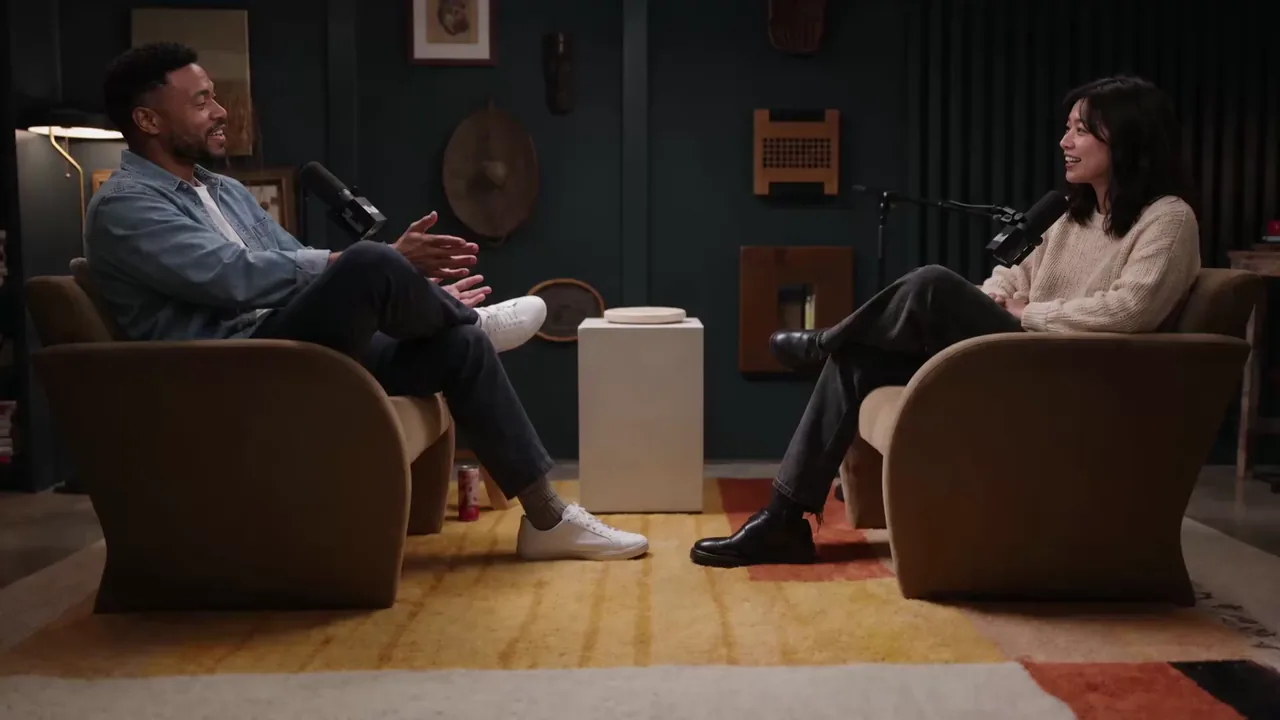
Use it when you recorded a single session—such as a multi-camera podcast, interview, panel, or studio conversation—with two or more cameras, or with one or more cameras plus external audio recorders, and want them synchronized and cut to follow the active speaker.
Do not use it in these cases:
- You have a single-camera talking-head recording. Use Speech Cleanup or Talking Head Edit instead.
- You have unrelated clips that were not filmed during the same session. AI Multicam Editor aligns recordings that share the same real-time conversation clock.
- You want to extract several short vertical highlights from one finished long video. Synchronize and cut your multicam session first, or use Turn a Long Video into Shorts on a single long recording.
What do I need before I start?
- 2 to 16 recordings from the same shoot. Upload or select between 2 and 16 video or audio files in the Skill form, or reference clips already in your project. Include both camera files (with scratch audio) and any separate audio-only recorders.
- Optional notes. Add up to 2,500 characters of direction—for example, requesting
sync-onlymode (aligning the master timeline without cutting between angles), naming the speakers, or specifying which recorder or microphone should serve as the primary program audio. You can also attach up to 16 optional reference images if needed. - Credits. AI Multicam Editor does not require a paid Pro plan. Running it with the built-in Agent uses ChatCut credits for the Agent work, while synchronizing clips and cutting between angles do not add a separate media-generation charge. A connected external agent uses its host billing for reasoning. See Credits.
How do I run it?
- Open AI Multicam Editor, or choose Skills → AI Multicam Editor in the AI composer (in ChatCut Desktop, you can also type
/to search for it). - Upload or select 2 to 16 recordings from your shoot and add any optional notes (such as
sync-only, speaker names, or preferred program audio). - Wait for the Agent to read transcripts and discover the session structure. If the overlap between clips is ambiguous or too sparse to confirm how recordings relate, the Agent reports what it found and waits for your confirmation before placing clips.
- Inspect the synchronized master timeline, where every aligned camera and audio track is labeled as
Cam · <subject or view>orAudio · <speaker or source>. - Unless you asked for
sync-only, open the separate speaker-cut timeline to review the alternating angle cuts over continuous program audio, along with the offset table, shot statistics, and angle plan in chat.
Fill in the form
This is the same form you see on the AI Multicam Editor Skill page and in ChatCut. Try it here: it opens ChatCut with your choices filled in.
Try the AI Multicam Editor form on its Skill page.
| Field | Options | What it changes |
|---|---|---|
| Recordings (required) | Upload or select 2 to 16 video or audio files | The camera angles, sequential camera spans, and separate audio recorders from the shoot |
| Notes (optional) | Free text, up to 2,500 characters | Extra instructions such as sync-only mode, speaker names, preferred primary audio source, or asking to also clean up filler words and retakes |
| Reference images (optional) | Up to 16 images, when offered | Optional visual references to help identify speakers or studio layout |
Prompts you can copy
Run AI Multicam Editor on @cam-a, @cam-b, @cam-wide, and @zoom-h6. Use @zoom-h6 as the primary program audio, label the speakers as Maya and Liam, and build both the synchronized master timeline and a speaker-following cut.
Use AI Multicam Editor on all clips in my project in sync-only mode. Align the camera angles and lavalier recorders onto one synchronized master timeline and label every track, but do not cut between angles yet.
Sync and cut @host-cam, @guest-cam, and @two-shot. Also remove clear false starts, filler words, and repeated takes before cutting the speaker-following timeline, keeping the same kept time ranges across all program mics.
What does ChatCut do for me?
- Works out how the recordings relate. The Agent compares the word-timed transcripts to tell simultaneous camera angles, separate audio recorders, and one camera that stopped and restarted. It does not assume a camera count. If the overlap is too thin to be sure, it reports what it found and waits for you before placing clips.
- Syncs everything on a master timeline. Each clip gets one constant offset against a reference recording, usually the one with the clearest, most complete audio. Footage is never time-stretched, and a clip it cannot align with confidence is reported instead of placed by guesswork.
- Labels speakers, shots, and microphones. It uses speaker names from the transcript or your notes, otherwise
Speaker AandSpeaker B. It checks frames to match faces to speakers and to classify each angle as a close-up, medium, wide, or two-shot. With several personal mics, it works out which mic belongs to whom from the audio rather than guessing. It picks the cleanest program audio (a dedicated recorder over camera scratch audio, unless you choose otherwise) and renames tracks asCam · <subject or view>andAudio · <speaker or source>. - Cuts a separate speaker-following timeline, unless you asked for sync-only. The master timeline stays untouched. The new timeline has the same frame rate and canvas, one video track of camera cuts, and continuous program audio. It cuts to the clearest shot of whoever is speaking, uses short reaction shots taken from the same moment (never borrowed from elsewhere in the shoot), holds a wide or two-shot for topic changes, shared laughter, or crosstalk, and stays on the current shot for brief replies such as “yeah” or “right”. If you also ask for filler and retake cleanup, the same cuts are applied to every program mic so they stay in sync.
- Checks the result. It confirms that the angles stay in sync, that the cuts line up with the program audio, and that spot-checked frames show the intended speaker and framing.
What do I get?
You get:
- A synchronized master timeline with all aligned camera angles and audio recorders placed at their constant offsets and labeled by speaker, framing, or audio source.
- A separate flat speaker-cut timeline (unless you requested
sync-only) with one video track of camera cuts and continuous synced program audio underneath. - A written summary in chat with the offset of each clip, how each track was labeled and why, the number of cuts and shot lengths, and the angle plan.
What it does not do
- Does not overwrite your synchronized master timeline when cutting. The speaker-following edit is always built on a separate timeline so you can return to the full multi-track master at any time.
- Does not time-stretch clips or trim sequential camera spans to fake alignment. Each clip uses a single constant time offset, and any clip whose alignment cannot be confirmed is held back and reported rather than placed by guesswork.
- Does not borrow reaction shots from a different moment in the shoot. Every reaction cut is aligned to the exact same wall-clock timestamp as the underlying program audio.
- Does not invent speaker names or guess mic ownership from utterance counts. It uses names from the transcript or your prompt (otherwise
Speaker A/Speaker B) and works out personal mic ownership from the audio itself. - Does not automatically export a video file. Both timelines stay editable in your project; export when you are ready.